

Quiet while you type
When you settle into work, it stays close and out of your way.
A free pixel cat desktop pet for Mac. It wanders, naps, and stays quiet while you work.
macOS 13+ · Apple silicon / Intel
Free, no account needed · Notarized by Apple
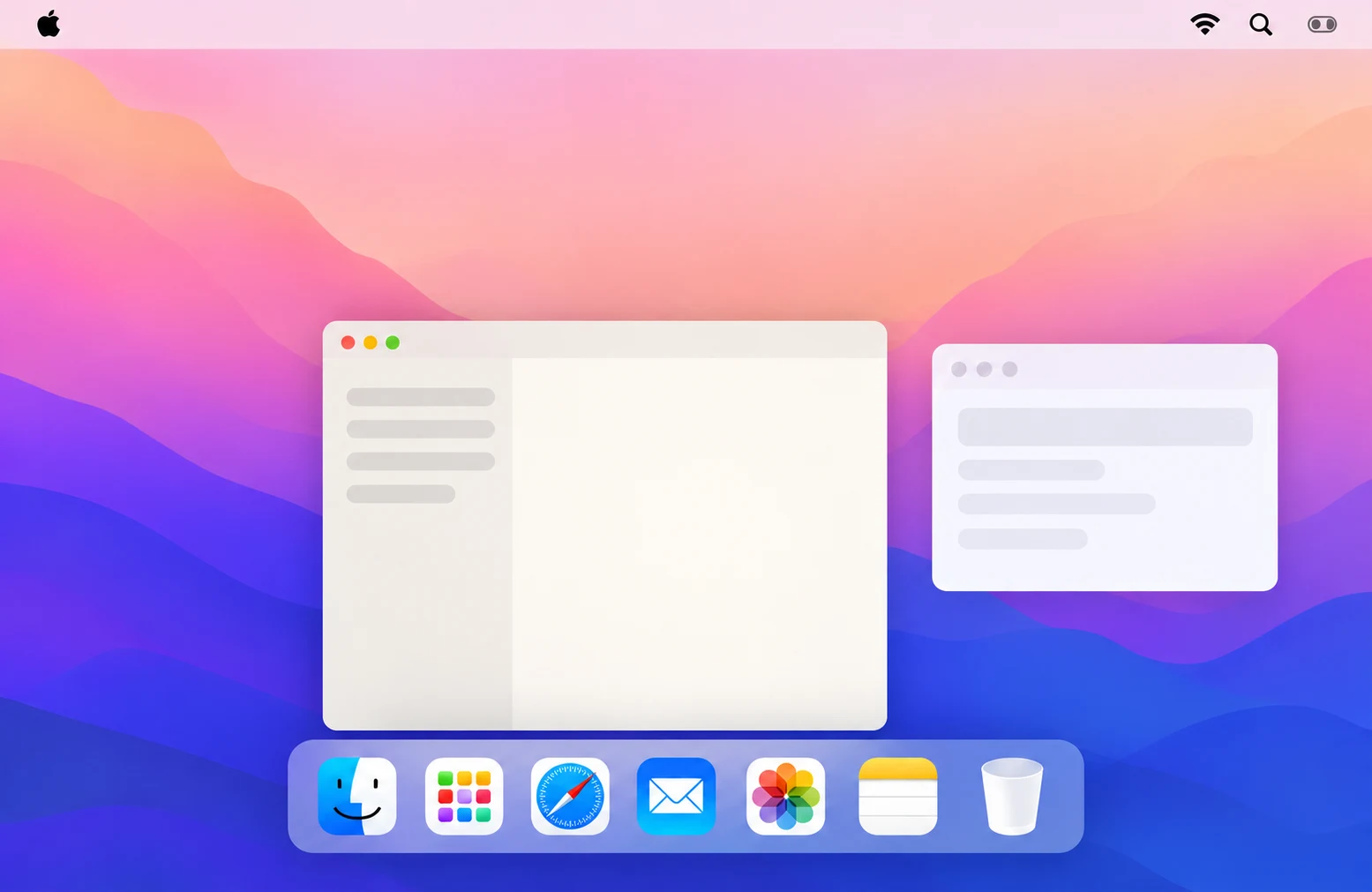 Desktop illustration
Pick a toy. See what happens.
A gentle glide, all the way down to your desktop.
Yarn and balloon are free; other toys need the Play Pack. Your selection stays here.
When you settle into work, it stays close and out of your way.

It moves to the screen edge when an app goes full screen.

It hides during supported screen sharing, so the moment stays yours.
Its name and memories stay on your Mac.
Company, pats, a yarn ball and a balloon.
 Download free
7 more toys · 25 extra looks
Up to 3 devices across Mac / Windows · One payment, no subscription
Checkout is temporarily unavailable. Please try again later.
Secure checkout, your way
Secure checkout by Stripe · Options vary by currency and device

The free app needs no account. Use your email to buy or restore the Play Pack. Sign in and view your account in Settings → General → Account & Play Pack, or from the cat menu.
Mac requires macOS 13 or later, with separate installers for Apple silicon and Intel. Choose your chip and check release availability in the download window. Windows is coming soon. Stay tuned. There is no mobile app.
Automatic updates are off by default. Enable them in Settings → About to download in the background and install at the next normal launch, without a forced restart during work. Updates preserve local settings, accounts and valid licenses; system permissions remain controlled by your OS.
Basic companionship needs no extra system permissions. Optional Screen Recording supports local visible-edge perception and explicit Finder scans; Accessibility helps recognize interface elements. Manage these separately in Settings; see the permissions guide.
Screen analysis happens when you actively use Finder glasses. Relevant screenshots are sent over a secure connection to a cloud vision service. Avoid sensitive content and read our Privacy Policy.